
If you want your business to appear on Google Search, Google Maps, and attract more local customers, creating a Google Business Profile (GBP) is essential.
A well-optimized Google Business Profile, Google My Business, local SEO, business listing, Google Maps listing, and online business presence can help customers find your business quickly, view your contact details, read reviews, and visit your website.
In this guide, you will learn the complete process of creating and optimizing a Google Business Profile step by step.
What is a google business profile ?
A Google Business Profile is a free tool provided by Google that allows businesses to manage their online presence across Google Search and Google Maps. It helps customers find important information such as:
- Business name
- Address
- phone number
- Website
- Business hours
- Customer reviews
- Photos and videos
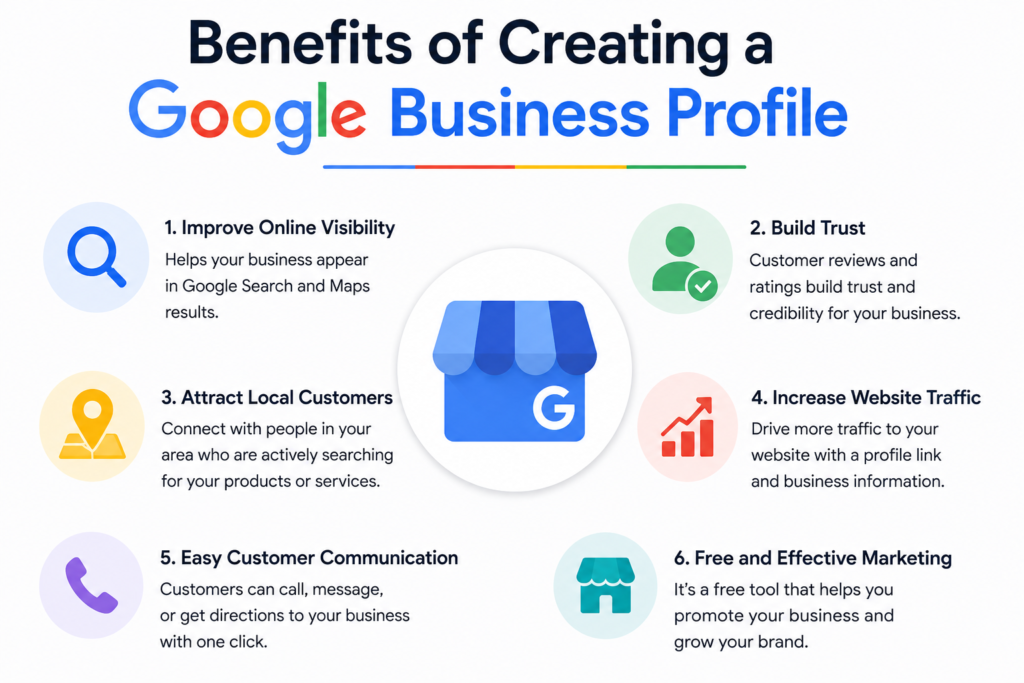
Benifits of creating a google business profile
- Improve local Visibility
Your business appears in local search results and Google Maps.
- Attract more Customers
Potential customers can easily find and contact your business.
- Build Trust
Customer reviews increase credibility and trust.
- Increase website traffic
Users can directly visit your website from your profile.
- Free Marketing Tools
Google Business Profile is completely free to use.
Step 1: Sign in to Google Business Profile
Visit the Google Business Profile website and sign in using your Google account.
Requirements :
- Business name
- Business address
- Google account
- phonr number
- Website
Step 2: Enter Your Business Name
Type your business name exactly as customers know it.
Tips:
- Use your official business name.
- Avoid adding extra keywords.
Example:
ABC Digital Marketing Agency
Step 3: Choose Your Business Category
Select the category that best describes your business.
Examples:
- Restaurant
- Clothing Store
- Beauty Salon
- Digital marketing agency
Choosing the right category helps Google show your business to relevant customers.
Step 4: Add Your Business Location
If customers visit your physical location, enter your complete address.
Include:
- Street Address
- City
- State
- Postal Code
Google will display your location on Google Maps.
Step 5: Add Service Areas
If you provide services at customer locations, add your service areas.
Examples:
- Delhi
- Gurgaon
- Noida
- Sonipat
- Panipat
This helps local customers discover your business.
Step 6: Add Contact Information
Provide accurate contact details.
Include:
- Business Phone Number
- Website URL
- WhatsApp Number (if available)
Accurate information makes it easier for customers to reach you.
Step 7: Verify Your Business
Google requires verification to confirm that you own the business.
Verification methods may include:
- Phone Verification
- Email Verification
- Video Verification
- Postcard Verification
Follow Google’s instructions to complete verification.
Step 8: Complete Your Business Profile
After verification, add complete business information.
add:
- Business Description
- Opening Hours
- Products
- Services
- Attributes
- Special Features
A complete profile performs better in local search results.
Step 9: Upload High-Quality Photos
Photos help attract more customers.
Upload:
- Business Logo
- Cover Photo
- Storefront Images
- Product Photos
- Team Photos
Businesses with photos often receive more customer engagement.
Step 10: Collect Customer Reviews
Ask satisfied customers to leave reviews.
Best Practices
- Request reviews politely.
- Respond to every review.
- Thank customers for positive feedback.
- Address negative reviews professionally.
Reviews improve trust and local SEO rankings.
Step 11: Publish Regular Updates
Use Google Posts to keep customers informed.
Post about:
- New Products
- Offers
- Events
- Announcements
- Seasonal Promotions
Regular updates show that your business is active.
Step 12: Optimize for Local SEO
To rank higher in local searches:
Use Relevant Keywords
Include keywords such as:
- Address is correct
- Phone number is current
Encourage Reviews
More positive reviews can improve local rankings.
Common Mistakes to Avoid
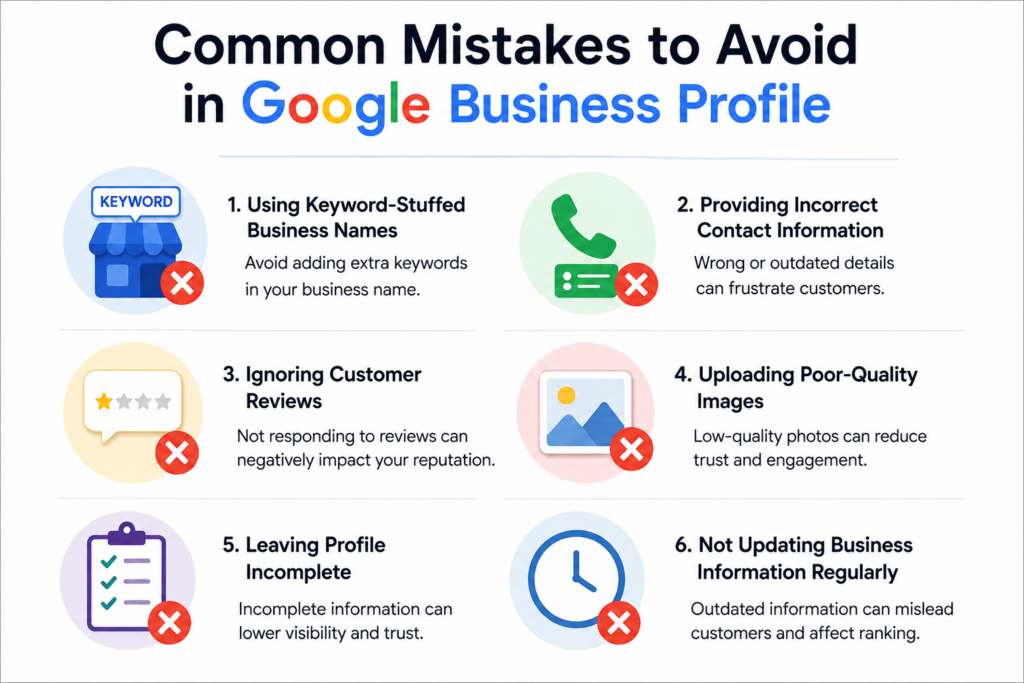
❌ Using keyword-stuffed business names
❌ Providing incorrect contact information
❌ Ignoring customer reviews
❌ Uploading poor-quality images
❌ Leaving profile incomplete
❌ Not updating business information regularly
Conclusion
Creating a Google Business Profile is one of the easiest and most effective ways to improve your local SEO, increase your Google Maps visibility, and attract more customers. By following the steps above—creating your profile, verifying your business, adding complete information, uploading photos, and collecting reviews—you can build a strong online presence and grow your business successfully.